
UI/UX
When should you fix a dashboard before adding more features?
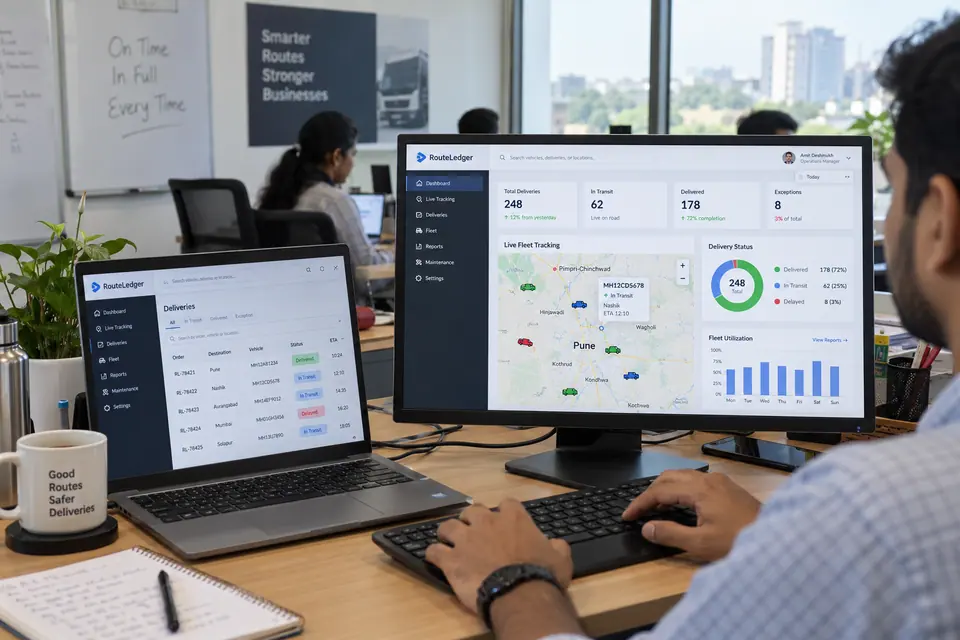
Audit a business dashboard by testing real tasks, checking filters and status labels, and making the next action clear.
The quick answer
Start with three tasks your team repeats. Watch users find the right record, understand its status and take the next action. Fix unclear labels, filters and feedback before adding features that depend on the same workflow.
Your team wants a new reporting widget. During a screen share, you notice people already export the dashboard into a spreadsheet because they cannot tell which records need attention. What would help more this week?
Start with the work people need to finish. A dashboard review should tell you where they get stuck and which changes are worth building first.
Choose Three Tasks Your Team Repeats
Write each task as an action with a clear finish. A sales lead might need to find quotes with a follow-up due this week, open the oldest one and assign a next step. A manager may need to see who owns each quote and whether a reply is overdue.
Ask a few people who do the work to use representative test records. Give them the task without pointing to the right control. Note where they hesitate, use the wrong filter or leave the dashboard to get an answer.
Check the Labels, Filters and Next Actions
Use clear table headers and give status meaning in text. A colour badge can support recognition, and the written label tells people what the status means even when the colour is difficult to distinguish.
| What goes wrong | What to change | How to check it |
|---|---|---|
| Users confuse created date and due date | Give each date its own label and show the active date range. | Ask the user to find items due this week. |
| Nobody knows who owns a record | Show the assignee or “Unassigned” in the table. | Ask the user to find the next record they can take. |
| People cannot tell whether an update saved | Show a clear success or error message next to the task. | Make a test update and verify both the message and the saved value. |
Design for Empty Results and Failed Requests
Try a search with no matches, a user who lacks access and a request that fails. Each screen should explain what happened and offer a useful next step, such as clearing a filter, asking the right person for access or retrying a temporary failure.
Test keyboard navigation through common actions. Check that focus can reach the table controls and that a user can see which control is active.
Fix the Problems That Interrupt Real Work
Prioritise issues that block a task, cause a wrong decision or create repeated manual work. Start with the smallest change that addresses the cause, then rerun the same tasks with comparable records. Compare completed tasks, errors and workarounds before planning the next feature.
- Find a recordCan someone filter to the right result?
- Read its statusCan they explain what the label means?
- Take actionCan they update it and confirm the change saved?
Further reading
- W3C tables tutorial: Review how to identify table headers and their relationships to data.